
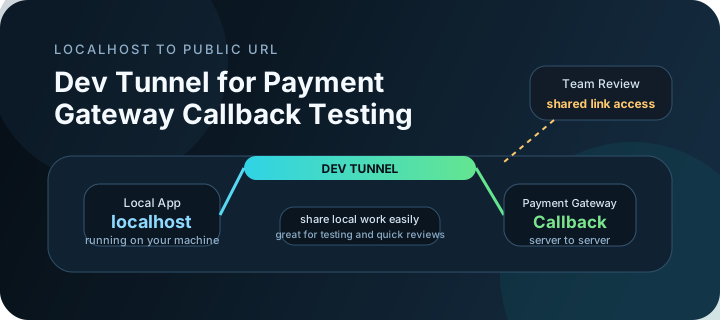
Recently I finished integrating Cardstream as a payment gateway. I was running test transactions locally and the browser redirect was working fine. But the server to server callback, the one that goes directly from Cardstream’s server to mine with no browser involved, was never arriving. No error, no log, nothing.
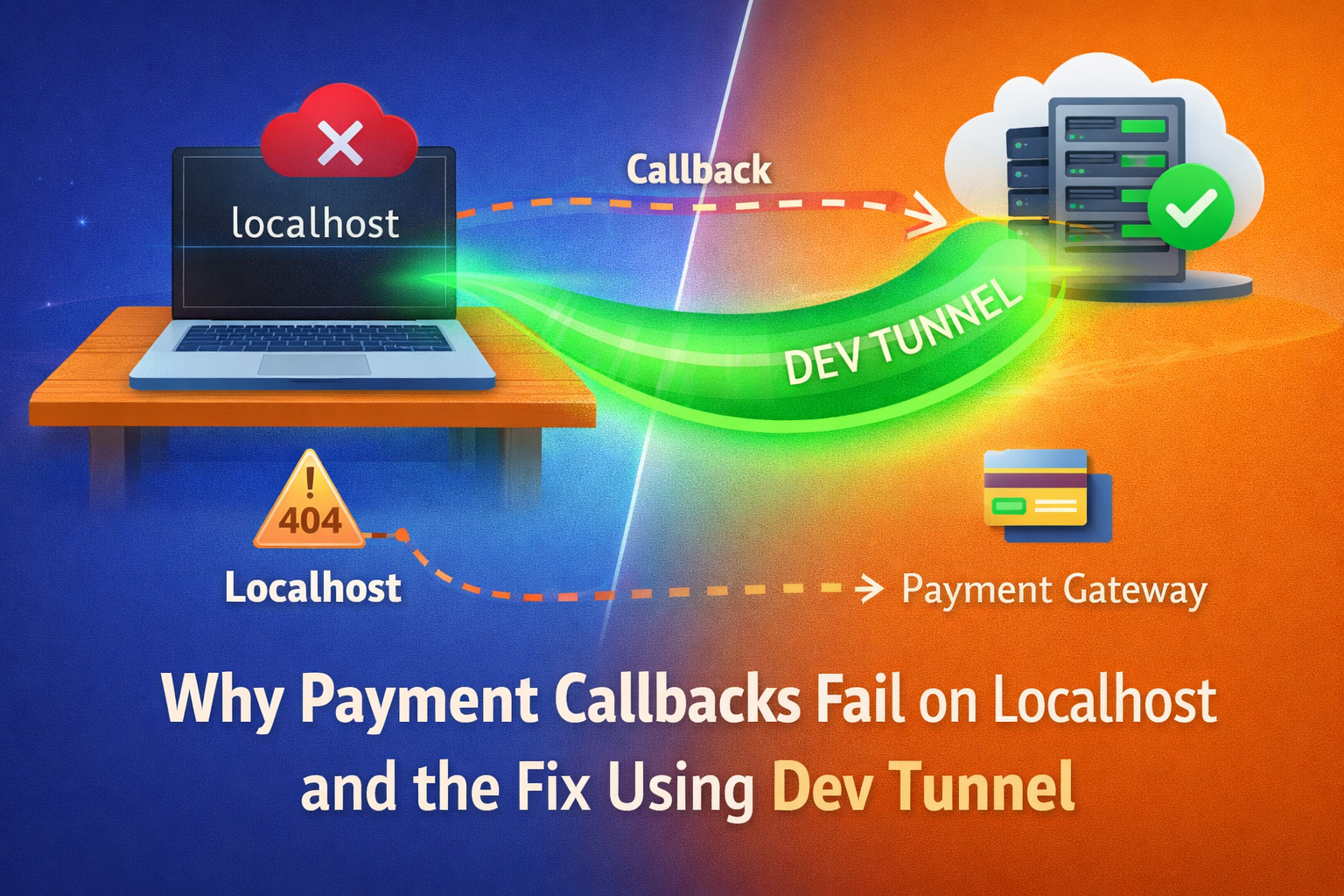
I checked my code, my routes, and my settings for a while. Eventually I realised the issue had nothing to do with any of that. My localhost simply was not reachable from the internet, so the callback had nowhere to go.
Dev Tunnel fixed it.
Why localhost is the problem
When your app runs locally, only your own machine can access it. An outside service like a payment gateway has no address to connect to. So the callback just disappears silently. No error, no log. It looks like a code problem but it is really a network access problem.
What Dev Tunnel does
Dev Tunnel is built into both VS Code and Visual Studio. It gives your local app a real public URL without you changing any code or setting up a server. The payment gateway can then call that URL, your local endpoint receives the request, and you can debug it in real time.
It is also useful for webhooks, sharing work with a teammate for a quick review, testing on a real mobile device, or a quick client demo, all without deploying anything.
Enabling it in VS Code
Open the Ports view in the panel at the bottom of VS Code. Click Forward a Port, enter your local port number, and sign in with a Microsoft or GitHub account when prompted. VS Code will generate a forwarded address for you.
For payment callbacks and webhooks, right click the port and set visibility to Public. Private ports require sign in, and a payment gateway cannot do that. Copy the public URL, add your callback path to it, and update your gateway settings.
Enabling it in Visual Studio 2026
Run your project and look for the Dev Tunnel option near the run and debug controls. Sign in if prompted, select your port, and create the tunnel. Visual Studio gives you a public URL for the session.
Same rule applies here. Set access to Public if a third party service needs to reach it, then add your callback route and update your gateway settings.
It works even on an office VPN
One thing I noticed is that Dev Tunnel continued to work even while I was connected to my office VPN. This is worth mentioning because some tools break when you are on a corporate network.
Dev Tunnel gets around this because it only uses outbound HTTPS connections on port 443. That is standard web traffic, and most corporate networks allow it without any special rules. Your machine reaches out to Microsoft’s tunnel relay service, and the payment gateway calls back through that same connection. No inbound firewall rules are needed and no special network access is required.
So if you are working from an office or connected to a work VPN, you do not need to disconnect just to test a callback. Dev Tunnel should still work as expected.
One thing to be careful about
Public tunnels mean anyone with the URL can reach your local app. Use it only during active testing, do not expose admin pages through it, and close it when you are done.
What I took away
Once I understood the real problem, the fix was straightforward. I did not need a new server or a deployment. I just needed my local endpoint to be reachable from the outside world, and Dev Tunnel handled that in a couple of minutes. If a payment callback is not arriving and your code looks correct, that is the first thing worth checking. Your localhost is most likely invisible to the payment gateway, and Dev Tunnel is the simplest way to fix that.